
Founder of Brainpulse IT and Identity & Endpoint Security Architect in the Microsoft ecosystem. Microsoft MVP and Microsoft …
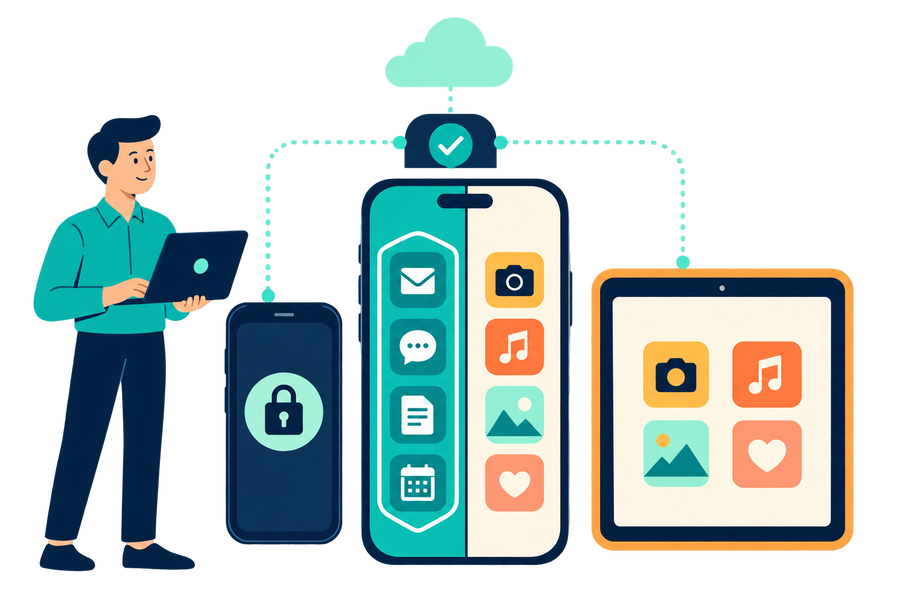

BYOD or corporate device: managing mobile devices securely with Intune
For most employees, the smartphone is the first device they use to read their email, reply in Teams and open a document. Yet mobile management is often less carefully designed than laptop management. Founder Stefan Dingemanse has been a Microsoft MVP for seven years, in both Security (Intune) and Windows and Devices (Windows 365), and is a Microsoft Certified Trainer. At organisations with 100 to over 1000 employees, he often hears the same question: do we manage the whole device, or only the business apps and data?
In this article we set out the options in Microsoft Intune, show where things often go wrong and provide a short decision guide.
Start with the ownership question
Every choice starts with one question: who owns the device? A corporate device can be managed in full. A personal device (BYOD, bring your own device) is a different matter. Employees do not want their employer looking over their shoulder, and there is no need to.
Intune is clear about this. According to Microsoft, your organisation can never see the call and browsing history, email and messages, contacts, calendar, passwords, photos or the content of personal documents on an enrolled device. Nor can it see the location of a personal device, and of the apps it generally sees only the managed business apps.
What else is visible depends on how the device is enrolled. With full device enrollment, the organisation sees details such as the device model, serial number, IMEI and the last four digits of the phone number. With account driven user enrollment on iPhone and iPad, Intune does not collect the serial number, IMEI or phone number, nor any apps outside the separate work volume. Explain this to your employees. It removes a lot of resistance.
MDM or MAM: protecting the device or the data
Intune offers two ways to protect mobile devices.
MDM (mobile device management) means the device is enrolled in Intune. You deploy apps, configure Wi-Fi, VPN and certificates, use compliance policies to check that the device meets your requirements and can wipe the device completely if needed.
MAM (mobile app management) works with App Protection Policies. These protect business data inside the app itself, even when the device is not enrolled. Think of a PIN for the app, blocking saving to personal storage, restricting copy and paste to unmanaged apps and blocking apps on jailbroken or rooted devices. The policy only applies in the work context. When someone leaves or a device is lost, a selective wipe removes only the business data from the app, without removing the app or personal data.
MAM without enrolment does have limits. You cannot deploy apps (users get them from the store themselves) and you cannot configure certificates, Wi-Fi or VPN. The two models are not mutually exclusive: a company phone with MDM and App Protection Policies, next to a personal tablet with App Protection Policies only, is a common combination.
iPhone and iPad: the enrolment options
Corporate devices are preferably enrolled with Automated Device Enrollment (ADE) through Apple Business Manager. Devices enrol automatically at first start-up and are supervised. Supervision is required for the stronger restrictions, such as blocking the App Store. Note: supervision cannot be turned on afterwards through Intune, only with Apple Configurator, and that resets the device. Devices not purchased through Apple Business Manager can be enrolled with Apple Configurator.
Personal devices have two routes besides MAM without enrolment:
- Account driven user enrollment: business data is stored on a separate volume and in managed apps, apart from personal data. Supervision is not possible and the management options are limited. You can deploy Wi-Fi and certificates, but VPN only per app (per-app VPN). Combine this route with App Protection Policies, as Microsoft recommends.
- Device enrollment (through the Company Portal app or on the web): the whole device is managed. That is more intrusive for a personal device.
Android Enterprise: four flavours
For Android, Intune supports four Android Enterprise scenarios:
- Fully managed: corporate device with one user, for business use only.
- Dedicated: corporate device without a fixed user, such as a scanner or kiosk.
- Corporate-owned work profile: corporate device with a separate work profile, personal use allowed.
- Personally-owned work profile: personal device with a work profile. Personal apps and data stay outside it.
Android device administrator is deprecated and no longer available for devices with Google Mobile Services. Block this enrolment type with an enrolment restriction.
Conditional Access as the gatekeeper
Policies on the device or in the app only work when access depends on them. Microsoft therefore advises combining App Protection Policies with Conditional Access. The relevant grant controls:
- Require device to be marked as compliant: only devices that meet your compliance policy in Intune get access. This suits managed corporate devices.
- Require app protection policy: only apps with an active App Protection Policy get access. This suits personal devices.
- Require approved client app: this control has been read-only since 30 June 2026. Existing policies are still enforced, but you can no longer edit them, only disable or delete them. For new policies, use Require app protection policy only.
With “Require one of the selected controls” you combine controls as an OR condition, for example a compliant device or a protected app. Also block access from unknown or unsupported device platforms.
Common mistakes
1. Mixing models without a policy. Corporate devices, personal devices and external staff are mixed together, without a documented choice per group. The result is a collection of exceptions that nobody can oversee any more.
2. Blocking the App Store without a request process. On supervised iPhones with apps licensed per device through Apple Business Manager, installation and updates run exclusively through Intune. User licences, on the other hand, require access to the App Store and do not work when it is blocked. The consequence: everyday apps, such as a parking or public transport app, have no route.
This often leads to the proposal to “lower the policy”. That almost never touches a single setting, but the whole licensing and enrolment model. Allowing a personal Apple Account in the App Store breaks the separation between business and personal, and opening up the App Store releases all control over installed apps.
A better approach is an explicit choice: strictly business with a fast request process for apps, or business with deliberately permitted personal use, compensated by App Protection Policies and Conditional Access.
3. MAM policies without distinguishing management state. An App Protection Policy assigned without choosing the device management state applies to both the personal device and the managed corporate device. It then becomes unclear which rules apply where. Target the policy by management state and check that it aligns with your Conditional Access.
4. No separation between business and personal. We regularly come across personal devices accessing email with the full Outlook app but without an App Protection Policy. Business email and attachments can then be stored locally or end up in personal apps.
5. Nobody owns the lifecycle. Who buys the device, registers it in Apple Business Manager, handles loss and theft and ensures a selective or full wipe when someone leaves? Without an owner, this goes wrong. Also document in a user policy what IT can and cannot see, test the selective wipe and involve your privacy officer.
Decision guide
| Situation | iOS/iPadOS | Android | Conditional Access |
|---|---|---|---|
| Corporate device, business use only | ADE (supervised) | Fully managed | Compliant device |
| Corporate device, personal use allowed | ADE plus App Protection Policies, as a documented choice | Corporate-owned work profile | Compliant device |
| Personal device, only email, Teams and Office | MAM without enrolment | MAM without enrolment | App protection policy |
| Personal device, Wi-Fi, VPN or certificates needed | Account driven user enrollment plus App Protection Policies (Wi-Fi and certificates; VPN per app only) | Personally-owned work profile | Compliant device |
| Shared device or kiosk | ADE without user affinity | Dedicated | Depends on scenario |
In doubt between two rows? Choose the lightest model that protects your data sufficiently. The less you manage on a personal device, the greater the acceptance.
How we can help
Within our consultancy we set up Intune and Entra ID for your mobile devices and design the Conditional Access policies that enforce access. This falls under the Modern Workplace and Identity Protection pillars. We help you document the choice per user group, set up the enrolment routes and assign ownership of the lifecycle.
Would you first like to know where your environment stands today? With the Security Health Check we measure the security of your Microsoft 365, Entra and Intune environment, including Conditional Access and your managed devices.
Sources
- Enrollment guide: Enroll Apple mobile devices in Microsoft Intune, Microsoft Learn
- Overview of Apple User Enrollment in Microsoft Intune, Microsoft Learn
- What information can my organization see when I enroll my device?, Microsoft Learn
- Migrate approved client app to application protection policy in Conditional Access, Microsoft Learn